
Channels
Connect an existing Agent to Slack, then verify that it replies in a channel. The example uses a dedicated Codex Agent named fred. The Slack setup screens show simulated Console data from Storybook.
Before you start
- Use a dedicated Codex Agent on Kubernetes with working model authentication. Deploy your first Agent if you do not have one. Embedded OpenClaw Harnesses cannot use external channels. Keep Slack disabled on the Standard OpenClaw preset.
- Ask your Installation operator to confirm that managed channel egress is ready. Private workspace routing alone does not provide Slack access.
- Prepare one Slack app for this Agent. Follow the Slack app and permission requirements for Socket Mode, token scopes, event subscriptions, and Console permissions. Keep its app and bot tokens available for Secret creation. Do not run another Agent or local process with the same app's Socket Mode token.
- In Slack, invite the app to the channel where you will test it. Use a channel and sender that you are authorized to connect to this Agent.
Add Slack in the Console
-
In Agents, select your Agent and choose Open draft. Open Channels and choose Configure Slack. For an existing setup, choose Edit Slack.

In the quickstart example, Open draft is beside Refresh.
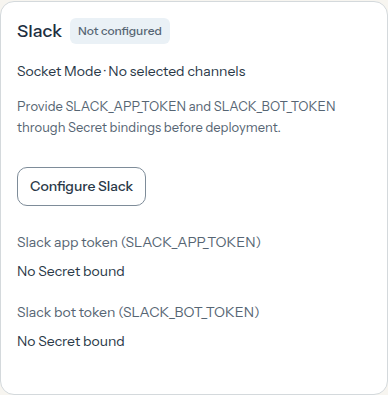
Start in the draft. The running version stays unchanged while you edit.
-
Select Enable Slack if it’s unchecked. Under Slack credentials, select the bot token Secret first, then the app token Secret. To create one, choose Create new Secret..., enter a name, and keep the prefilled key. Paste the token into Value and choose Create Secret.
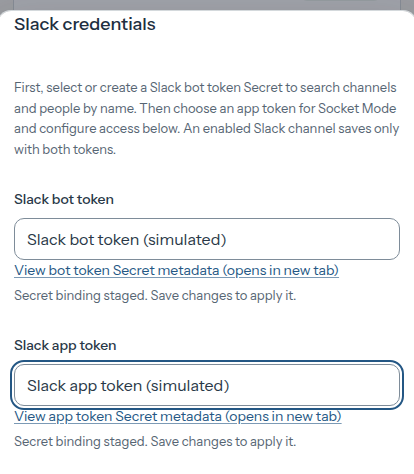
Both bindings are staged. Creating a Secret stores it immediately. Cancelling the drawer discards your selections and keeps the Secret.
-
Under Channels, search for the channel you invited the bot to and select it. Use Next page for more results, or paste an exact channel ID and press Enter. The bot Secret enables name lookup. If a token is missing or lookup is denied, resolve the setup error.
-
Under Who can use the agent in these channels?, keep Specific people and select the people the Agent should respond to, including your test sender. Choose Everyone in these channels only if all members should have access.
-
Leave Require a mention enabled. For channel-only access, set Direct-message policy to Disabled — no direct messages. The default for a new setup is Allowlist — selected users only.
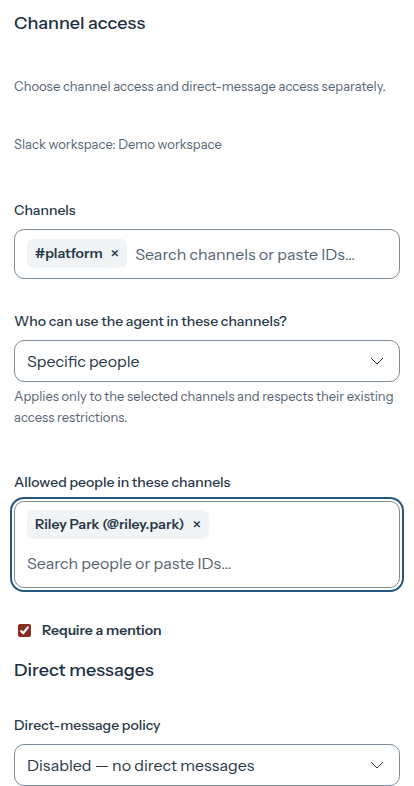
In #platform, fred responds to Riley’s mentions. Direct messages are off.
-
Choose Save configuration. If other Agents share this Configuration, their next deployments will use the saved settings.
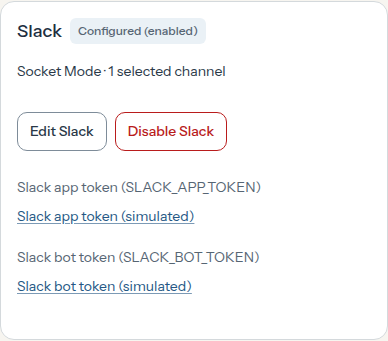
Configured (enabled) confirms the saved settings. It does not verify the tokens or a connection to Slack.
-
Above the tabs, find Prepare this version and choose Deploy new version. Check that Selected for service shows your new version and Latest visible deployment shows Completed for that version. Deploy again after changing a channel or its token value.
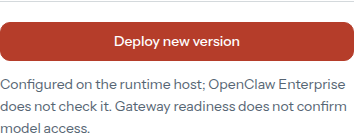
In this example the operator manages fred’s model credentials on the runtime host.
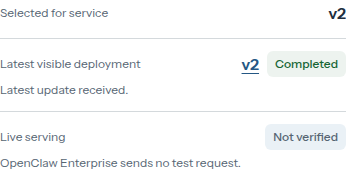
The deployment of v2 completed. Live serving still shows “Not verified” because the Console sends no test message.
Verify a reply
Wait for the Gateway and Harness to become Ready. In the selected Slack
channel, mention the app from an allowed account. For example, send
@YourAgent Reply with channels check 7319. Use your app’s mention and a fresh
phrase. Open the thread and confirm the Agent replies with that phrase.
If no reply arrives, check the bot’s channel membership, allowed sender, mention, and deployed version. In Deployment, run diagnostics for this version to check Slack authentication and connectivity. Follow the Slack guide to check scopes, Socket Mode, and managed egress. Keep mention filtering enabled unless you intend to allow channel messages without mentions.
Resolve setup errors
Missing tokens
To save with Slack enabled, select or create both token Secrets. If a Secret is
disabled in the picker, ask your Installation administrator for operate on it.
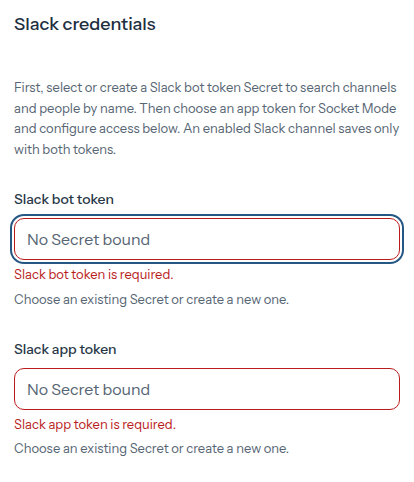
Each empty picker identifies the binding you need to supply.
Directory access denied
Check the selected bot Secret and the permission named in the message. To skip name lookup, paste an exact channel or user ID and press Enter. Entering an ID doesn’t grant access to the Secret.
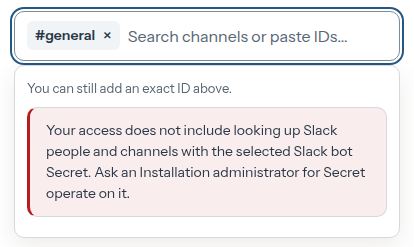
To search by name in this example, ask an Installation administrator for
operate on the selected bot Secret.