
Add Codex plugins to an OpenShell Agent
Human verified
A human reviewed this page, but it may be out of date. Later edits may not have been reviewed.
Enable Linear on the Codex Agent you created during setup (fred in this example), then ask it to list teams. You can add Git to the same Agent before or after Linear. For dedicated OpenClaw Agents using managed CLI or hosted MCP plugins, see Get started with managed OpenClaw plugins.
Before you start
Use a ChatGPT service account with Codex plugins enabled and an authorized Linear connection. Deploy the Agent with that account’s token. An OpenAI API key cannot access plugins.
Complete Deploy your first Agent, including browser onboarding and reopening the same conversation. Continue in its Bash shell or source the private session.sh printed at the end of the guide. Use the same Agent and model Secret. Selecting a plugin does not authorize a new connection.
1. Enable Linear and redeploy
Console
Open Agents → fred and select its editable draft. Open Plugins → Configure plugins. If the page shows a read-only summary, check the permissions for editing plugins.
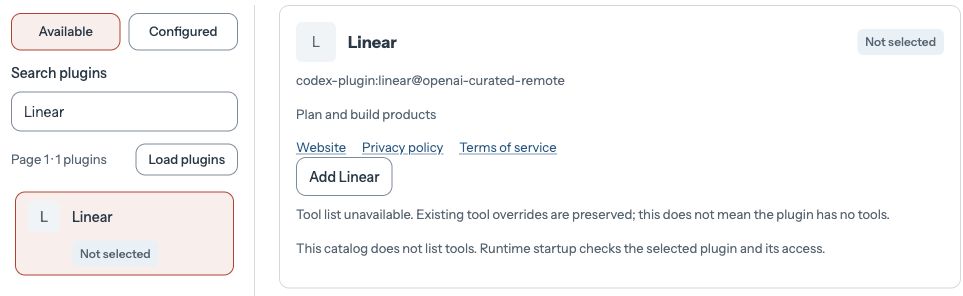
Under Available, search for Linear, select the result, and click Add Linear.
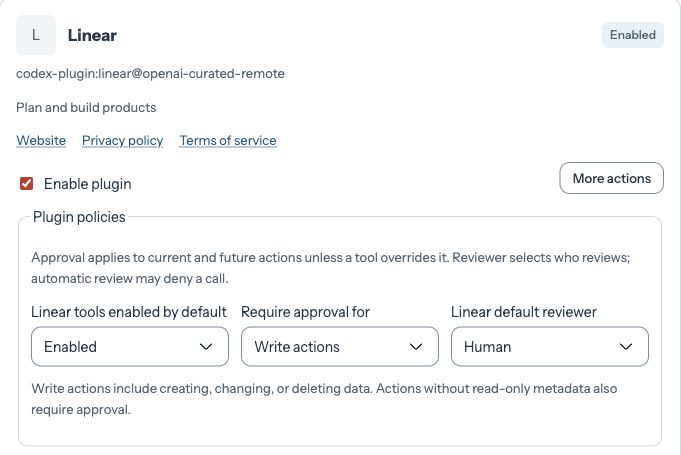
Under Plugin policies, enable Linear’s tools and require a Human reviewer for Write actions. Keep fred’s other plugin selections. Click Done, then Save plugin selections.
In the operator shell, run deployment_preflight before you deploy the saved draft.
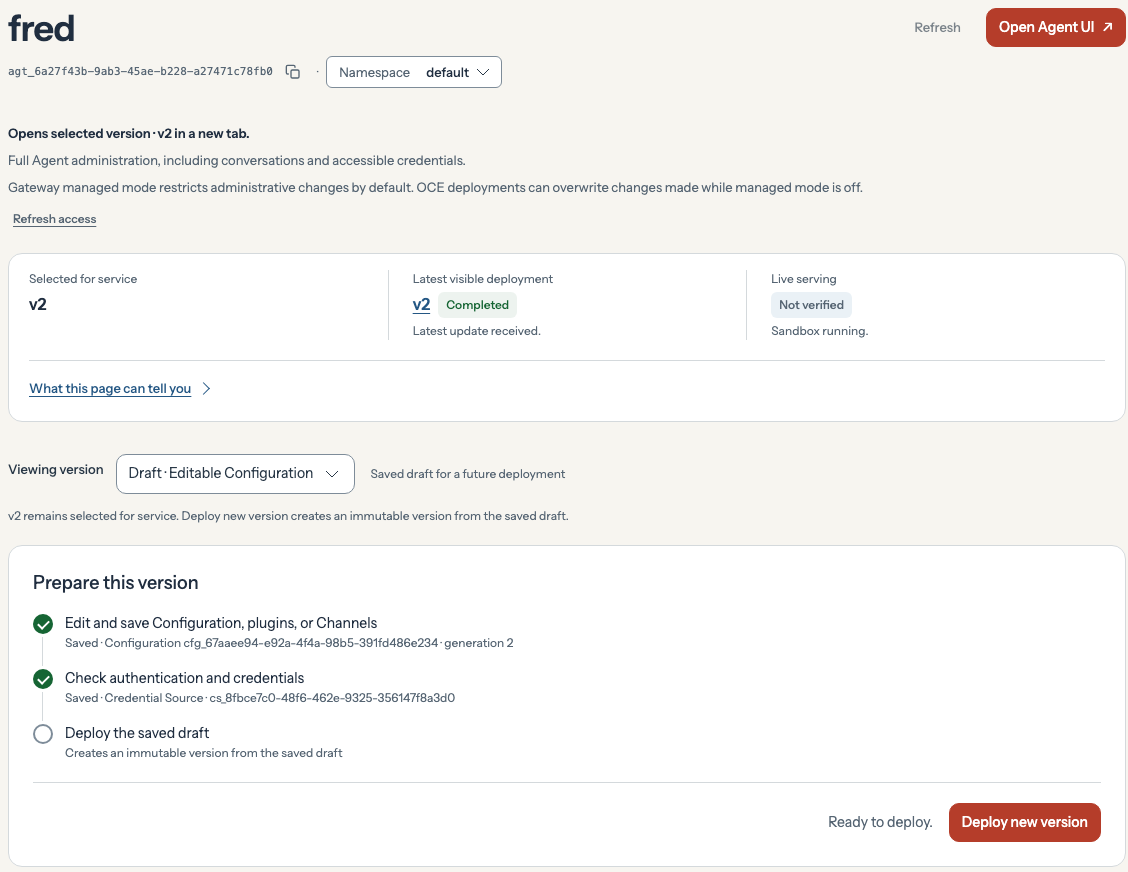
On Agents → fred, choose Draft · Editable Configuration under Viewing version. Check the saved changes in Prepare this version, then click Deploy new version. This deploys a new version of the same Agent.
Copy the deployment ID from the Console URL’s revision parameter. Run wait_deployment <deployment-id> in the same shell to apply the network rules and wait for fred’s new version.
CLI
Discover Linear in the account catalog
Use the ready Credential Gateway source for the connected service account. The saved session supplies its Namespace source ID as modelSource. Search its account catalog for an available Linear plugin. Follow the continuation cursor until you find it. Select the plugin with human approval for write actions.
# POST $base/agents/plugins: use the model Secret reference to search this account.request GET "$base/credential-sources/${modelSource:?}" |jq -e --arg ns "$namespace" '.data|select(.type=="codex-pat" and .state=="ready" and .ownerCapability=="credential_gateway")|.secrets.access_token|select(.kind=="secret" and .namespaceId==$ns)' > "$RUN_DIR/catalog-secret-ref"cursor=""while true; dojq --arg cursor "$cursor" '{harnessId:"codex",secretRef:.,q:"linear"} +(if $cursor=="" then {} else {cursor:$cursor} end)' "$RUN_DIR/catalog-secret-ref" |request POST "$base/agents/plugins" --data-binary @- > "$RUN_DIR/plugins"plugin=$(jq -r 'first(.data.plugins[]|select((.name|ascii_downcase)=="linear" and .available!=false)|.id) // empty' "$RUN_DIR/plugins")if [[ -n $plugin ]]; then break; ficursor=$(jq -r '.data.nextCursor // empty' "$RUN_DIR/plugins")if [[ -z $cursor ]]; then echo 'Linear is unavailable for this account.' >&2; exit 1; fidoneprintf 'Linear plugin ID: %s\n' "$plugin"Enable Linear on the existing Agent
Use the ID from step 1. Add Linear to the current plugin map, then deploy a new Agent revision. Update one Agent draft at a time.
# GET and PATCH $base/agents/$agent: retain existing plugins and credential sources.request GET "$base/agents/$agent" |jq --arg plugin "$plugin" '.data | {configurationId,plugins:((.plugins // {}) + {($plugin):{enabled:true, toolDefaults:{enabled:true,approval:"write_actions",reviewer:"human"}}})}' |request PATCH "$base/agents/$agent" --data-binary @- > "$RUN_DIR/plugin-agent" # POST $base/agents/$agent/deploy and wait until this revision becomes active.deploy_and_wait2. Verify a Linear read through OpenClaw
In your operator shell, save a unique marker so you can find this turn in fred’s transcript if needed.
linear_marker="linear-$(openssl rand -hex 8)"printf '%s\n' "$linear_marker" | tee "$RUN_DIR/linear-marker": > "$RUN_DIR/linear-run-id"Console
Open Agents → fred, select the running version under Viewing version, and click Open Agent UI. The Agent's Control UI opens in a new tab.

In fred’s chat, paste this prompt, add the marker from your operator shell on a separate line, and send it once.
Use the Linear plugin to list up to three teams I can access. In your reply, give only the number of teams returned.
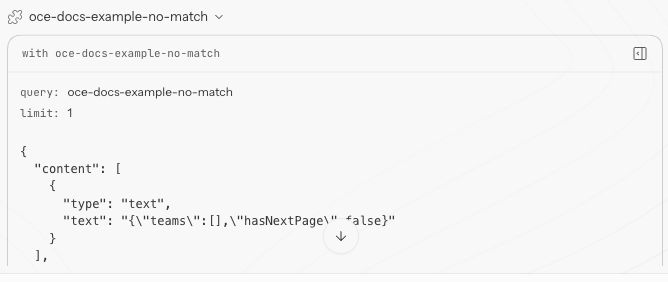
Expand the activity for that turn and open the Linear list Teams tool result. Count the entries in teams and compare that number with fred’s reply. Your count depends on the connected account.
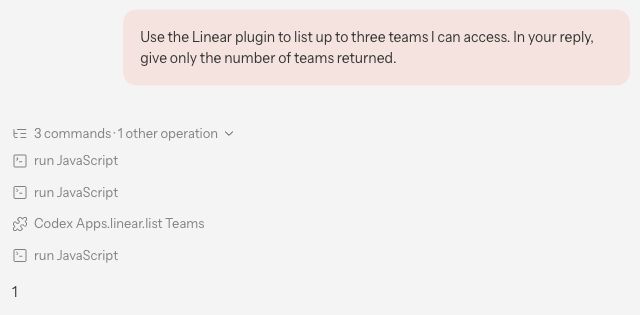
A separate example below shows the expanded tool output for a filtered search. The empty teams list gives a count of zero. If the chat hides your result, read the existing turn’s transcript.
CLI
printf 'Use the Linear plugin to list teams with limit 3. Make no changes. Return the tool name, team IDs and result, and include marker %s in your reply.\n' \"$linear_marker" > "$RUN_DIR/linear-prompt" # chat.send over wss://<private-gateway-host>/namespaces/$namespace/agents/$agent.turn "$RUN_DIR/linear-prompt" > "$RUN_DIR/linear-result"jq -er .runId "$RUN_DIR/linear-result" > "$RUN_DIR/linear-run-id" # Check chat.history for the actual successful tool call, then compare it with the reply.if jq -e '.outcome.status=="ok" andany(.history.messages[]?; .role=="toolResult" and .toolName=="codex_apps.linear.list_teams" and .isError!=true)' "$RUN_DIR/linear-result" > /dev/null; thenjq '.history.messages[]|select(.toolName=="codex_apps.linear.list_teams")|.content' "$RUN_DIR/linear-result"jq -r '.outcome.terminalReply.text' "$RUN_DIR/linear-result"elseprintf 'Read the existing run using the native transcript procedure below. Do not resend the prompt.\n'fiRead the existing run's native transcript
If display history omits the direct tool result or uses a dispatch envelope, read this Agent's existing Gateway transcript. This requires operator Kubernetes read and exec access. Use the transcript reader saved during setup and the saved marker. The CLI saves its exact run ID; the Console leaves that file empty and the unique prompt marker identifies the run. After opening a new shell, resume session.sh before running this block.
linear_marker=$(cat "$RUN_DIR/linear-marker")linear_run_id=$(cat "$RUN_DIR/linear-run-id") read -r gateway_ns gateway_pod < <( kubectl --kubeconfig "$KUBECONFIG" --context "$CONTEXT" get pods -n "${TENANT_NAMESPACE:?Resume the operator session}" \ -l "openclaw.dev/agent=$agent" -o json | jq -er '[.items[] | select(.metadata.deletionTimestamp==null and (.metadata.name|startswith("gateway-")) and any(.status.containerStatuses[]?;.name=="gateway" and .ready))] | select(length==1) | first | [.metadata.namespace,.metadata.name] | @tsv')kubectl --kubeconfig "$KUBECONFIG" --context "$CONTEXT" -n "$gateway_ns" \ exec -i "$gateway_pod" -c gateway -- node --input-type=module - \ "$linear_marker" "$linear_run_id" \ < "$RUN_DIR/inspect-linear-transcript.mjs" \ > "$RUN_DIR/linear-transcript.json"cat "$RUN_DIR/linear-transcript.json"The transcript reader opens the database read-only, finds the marked prompt, and matches a direct codex_apps.linear.list_teams call or its dispatch_action envelope to a successful result by tool-call ID in the same run. It returns that result and the terminal reply. Compare the team count (Console) or IDs (CLI) in results[].content with reply. Keep this file private because it contains connected-account data. Code Mode calls are not decoded by this reader. Missing evidence is not success; check the selected Pod and marker without replaying the turn.
A successful turn includes codex_apps.linear.list_teams and a reply matching its result. If plugin installation fails, check the plugin installation requirements. You can now add Git to this same Agent, or delete the Agent and clean up the selected Installation.